

Using subtitles is an excellent way to better understand the dialog of a Max (formerly HBO Max) program when watching at a low volume. In this post, we will cover how to access the settings to turn subtitles on or off in the Max app.
Subtitle Settings on Fire TV / Roku / Apple TV
- Start streaming the program you wish to watch. Roku users press the asterisk (*).
- Fire TV and Apple TV users press Down two times on the directional pad on the remote.
- Arrow right over to the talk cloud icon. Press the Select/Center button to select it.
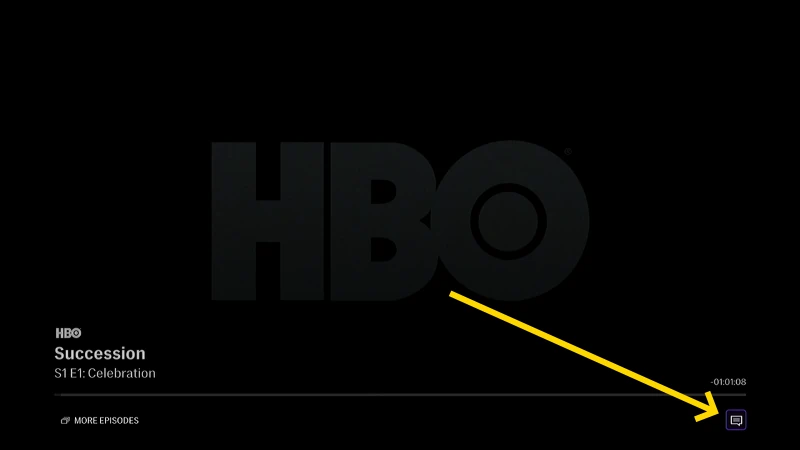
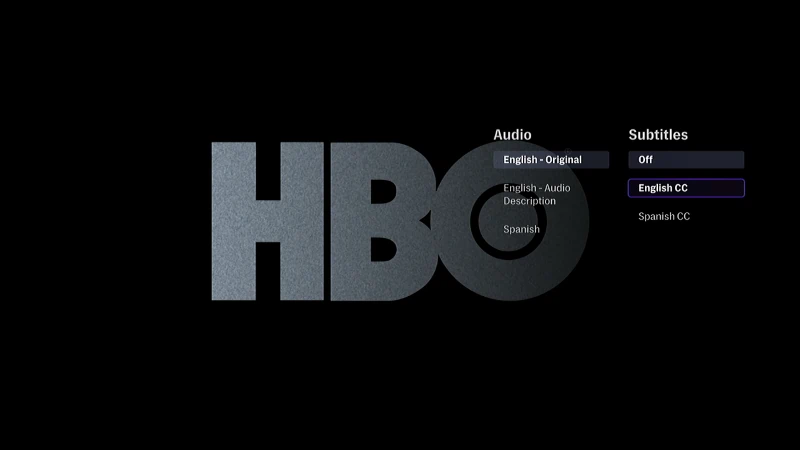
- Use the directional pad to highlight the desired setting. You can choose Off to turn subtitles off or select a language to display the subtitles to turn them on.
If you have gone through these steps and the settings aren’t working as expected, try setting them from a web browser. We have a post about it here.
Subtitle Settings on iPhone, iPad, Android, Fire Tablet, or Web Browser
-
- Login to Max and start streaming the program you wish to watch.
- Move your mouse over the screen, or tap the screen once, then select the talk cloud icon.
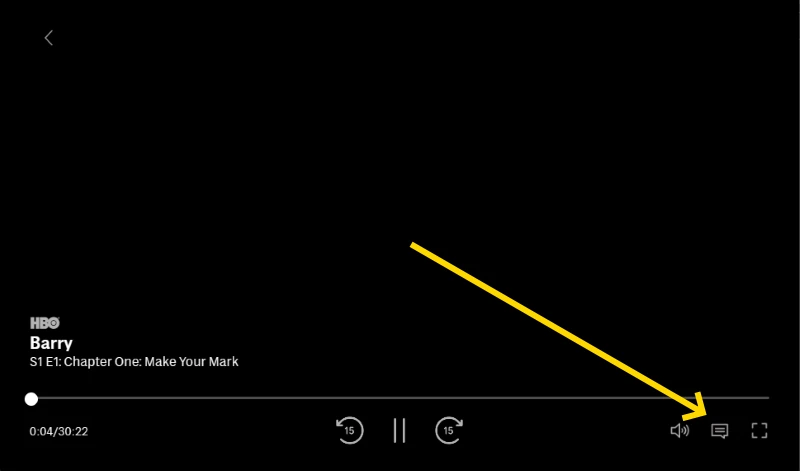
- Click or tap the desired setting under the Subtitle menu.
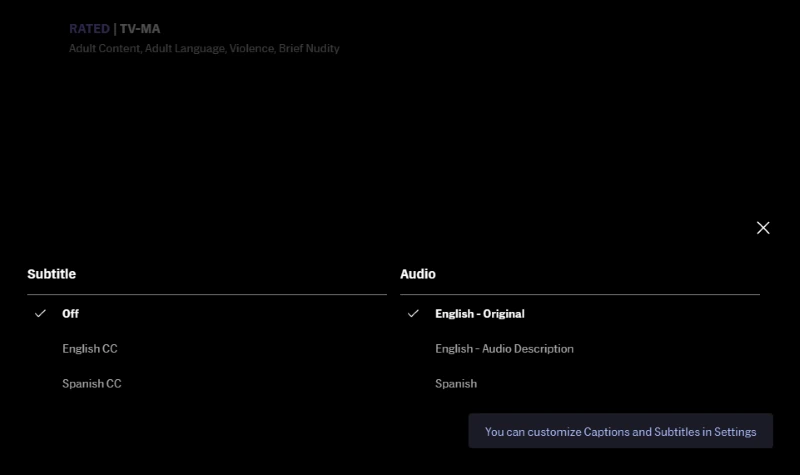
- Select the X to close out and save the changes.